Loading...
Loading...
Loading...
Loading...
Loading...
Loading...
Loading...
Loading...
Loading...
Loading...
Loading...
Loading...
Loading...
Loading...
Loading...
Loading...
Loading...
Loading...
Loading...
Loading...
Loading...
Loading...
Loading...
Loading...
Loading...
Loading...
Loading...
Loading...
Loading...
Loading...
Office Integration for Lotus Notes and Domino
Welcome to the SWING Integrator for Notes documentation!
SWING Integrator is a printing, reporting, and document automation solution for Lotus Notes.
Integrate familiar Office applications with your Notes and Domino solutions, and benefit from advanced document authoring, formatting, accurate printing, reporting and data analysis. Extend your solutions simply by adding new Office templates, or let authorized users do so.
See how to integrate MS Word, Excel, or OpenOffice with a standard Lotus Notes application. In this tutorial, we are using the standard Doc Library template, creating an Office-enabled document library in just three steps. Let users merge Notes data with Office templates, creating well-formatted professional documents - from personalized letters to complex contracts and sales proposals. https://www.slideshare.net/swingsoftware/howto-doclib-slideshare
With SWING Integrator, a Lotus Notes applications such as CRM can be easily enhanced with an advanced mail merge feature, so the personalized MS Word or OpenOffice Writer documents can be instantly faxed, emailed, or printed. In addition, standard mailing labels can be created with ease.
In this tutorial we will show how to create PDF with Lotus Notes data. Business users will be able to create and attach a PDF quotation to an email message with a single click. Although Office templates are used in the background, users see only the resulting PDF.
Transform any Notes view or document collection or arrays into Excel reports and charts. Take advantage of Excel features such as PivotTables, conditional styling, and drilldown to analyze Notes data from your applications. Enable business users to create reusable report layouts. Or, edit Notes data in Excel and save them back to Notes.
When the web page is refreshed or when you close the web document without saving it, the following message will appear:
"Are you sure you want to navigate away from this page. You are editing the document. Press OK to continue, or cancel to stay on the current page."
In order to disable this mesage, open Domino Designer and go to "SwAttachmentsWeb" subform. In "JS Header" section of the subform replace the value of SwSkipClosePrompt to 1:
var SwSkipClosePrompt=1;
That way this message will be disabled.
When the web page is refreshed or when you close the web document without saving it, the following message will appear:
"Are you sure you want to navigate away from this page. You are editing the document. Press OK to continue, or cancel to stay on the current page."
In order to disable this mesage, open Domino Designer and go to "SwAttachmentsWeb" subform. In "JS Header" section of the subform replace the value of SwSkipClosePrompt to 1:
var SwSkipClosePrompt=1;
That way this message will be disabled.
Description
By default, the maximum number of files that can initially be attached is 10.
Solution
What you need to do is to add as many rows as you want to a table on a "SwAttachments" subform. Now, you should copy the last row in the table to each of these newly created rows and change field names to Sw...._11 (and _12, _13 respectively). In additon, you should change "hide-when" formulas for every added row and formulas/code on the fields in those rows.
Of course, you will have to change form's PostOpen and QueryOpen events to allow more attachments on it (Source.Document.SwMaxAttachments = xx).
Note that the maximum number of attachments is actually 99.
We are supporting language customization in terms of modifying two of the script libraries. Since this is the developers product, which can be integrated to whatever database, this seemed as the most practical way of achieving multilingual support.
These libraries (SwIntOfficeMsg and SwCoreMsg) need to be prohibited for design refreshes, but this is not a big problem, because those libraries are not updated very often anyway.
When they gets updated, these are usually just few lines of code, which we document and give guidance on what needs to be done in order to update your custom SwIntOfficeMsg and SwCoreMsg library.
You are able to create Template setup document for the response document and in the field mapping set formula that will pull the value from the parent document. Like this:
@GetDocField($Ref;"Subject")
Please notice that with this formula you are able to select any document if you know its UNID (first parameter in formula).
Description
Word 2007 issue. If the user name and initials fields are not filled in, then for some inexplicable reason, the VBA code will fail to execute with a bad parameter error.Solution
Have the user put their user name and initials in word options. Close word and try again.This feature has been deprecated due to the end of life of Microsoft Internet Explorer and ActiveX. SWING Software has terminated support for Internet Explorer and ActiveX.
Open Internet Explorer and Select "Tools" -> "Internet Options"
When you open SWING Integrator in Internet Explorer, current zone should be indicated on the bottom of your screen (similar to picture below). In my case it is "Trusted sites", yours can be something else.
In "Internet Options" window select "Security" tab.
Click on your zone icon and press "Custom level..." button.
Description:
The following error message appears:
SwDocumentLib - SW_OpenMSWord 55-9999; SwDocumentLib - SW-SETLANGUAGEPROPERTIESWORD ->25 SwDocumntLib - SW-RUNVBMACRO -> 9
213 - Microsord Word: Unable to run the specified Macro.
Solution:
This error occurs if the macro security in MS Word is not set correctly.You can try any of the following:
1) Check whether you have SWING integrator template loaded in MS Word (Tools -> Templates and Add-ins).
2) There is a known issue with SnagIt screen capture software and SWING Integrator. If you have SnagIt installed on your computer, try downloading the latest version of Integrator (in which this issue is resolved) or uninstall SnagIt and check the functionality again.
When users are opening an attachment (without template) and they are in read mode, why a dialog window appears with the question: read, write or detach?
When I'm using a template, then I can choose to open the attachment in read mode when the user is in read mode. I'm not using a template.Is it possible to open directly an attachment in read mode when a user is in read mode without the dialog?
If you have document that is stored as existing document, you should use global variable "SW_ExistingAttachmentReadMode" in the “SwIntOfficeMsg” lib that defines what will happen when existing document is launched.
Choose one of the options in this global that will suit your need.
To resolve this issue, you must delete the cached versions of the control type libraries (extender files) on the client computer. To do this, you must search your hard disk for files that have the ".exd" file name extension and delete all the .exd files that you find. These .exd files will be re-created automatically when you use the new controls the next time that you use VBA.
These extender files will be under the user's profile and may also be in other locations, such as the following:
C:\documents and settings\username\Application Data\Microsoft\Forms C:\documents and settings\username\AppData\Local\Temp\VBE
For Windows 7:
C:\Users\USER NAME\AppData\Roaming\Microsoft\Forms
C:\Users\USER NAME\Application Data\Microsoft\Forms
Also, you should remove the SWING Software template document from:
C:\Users\USER NAME\AppData\Roaming\SWING Software\Integrator
Please remove all the files (extender and SWING Integrator template) before you try to create new Word document.
Description
A multi-value field or a single value field with carriage returns exported to the corresponding word document which is placed inside a table produces lines that are not separated. Instead of a carriage return, a square box appears in its place.
Solution
This is a "known" problem with MS Word application. Apparently, it seems that when the field is placed within a table, MS Word cannot recognize the new line character.
The trick is to press ENTER after the field (this way, you will have the table with one row and two lines - first one will contain field bookmark and second one will be empty; you can set font to 1, so it would hardly be visible at all).
In the "Security Settings" window scroll to "ActiveX controls and plug-ins" section and set it like on three pictures below.
Press "OK".
In addition, you should remove all the Integrator activex instances already installed on this workstation. This should enable ActiveX execution on your computer.
Select "View - Go to..." - "PDF setup documents" view
Create new document (i.e. "# TEST Watermark") and in the Watermark tab set Print watermark to yes.
2. Setup the Office document to the PDF watermark creation
In the Office document you should set "SW_PDFWatermarkText" custom document property to your sign.
Or:
programatically set "SW_PDFWatermarkText" custom document property before the PDF creation start.
3) Try enabling macros in MS Word:
(Office 2003 example ) 1. Go to Tools -> Options 2. On the Options form, click on Security tab 3. On the bottom of the Security form click on "Macro Security..." button 4. On newly opened Security window click on "Security Level" tab 5. Set "Medium" or "Low" radio buttons.
6. Click "Trusted Publishers" tab 7. Select "Trust all installed add-ins and templates" checkbox
8. Click OK and Restart MS Word
Let's say you want to have English and Norwegian messages versions.
If you need multilingual support, you should modify “SW_IntOfficeMsg” function in the “SwIntfOfficeMsg” library.
Basically, we are using this function in our code to get all the messages defined in the "(Declarations)" section.
Here is an example on how to enable multilingual support.
In the “SwIntOfficeMsg” library (or anywhere else, where appropriate) create a global variable named, say, SwLanguage
This variable could be set to either "EN" or "NO"
Now, in the “SwIntOfficeMsg” library "(Declarations)" section rename all the constants to SW_IntOfficeMsgEN1,2, etc. and create new ones, named SW_IntOfficeMsgNO1,2, etc.
Description
You may experience this error when using a database replica, as your current license (a user pack with less than 100 users) doesn't cover this. This doesn't apply if you replicate database on Local.
Solution:
It is suggested that you run your database on local for a test purpose. Here are the steps:
1. Open Domino Designer and unhide "SwDeleteProfileDocuments" agent from agent view. Set properties as in the below image:
2. Go to Notes Client and run Database
3. In the "Actions" menu choose "SwDeleteProfileDocuments" :
4. Now, you need to activate licence again.You can copy the database using file system and in this case, you should be able to use it. Also, you can run (SwDeleteProfileDocuments) agent and then run "Activate license" action (on the "Templates" view) once again.
Note that this activation should be performed on a server.
Description
It's not possible to add a form field to a header or footer in Word.
Solution
In order to map a Notes field into a header or footer, you will have to use bookmarks. Here is the procedure:
Open Word document and set the cursor in the header (or footer) of the document.
Go to the Insert - Bookmark, enter the name of the bookmark and press "Add".
The bookmark will be created, although you might not be able to see it (in order to see all the bookmarks, you should enable the bookmarks view: Tools->Options...->View tab->Show section->Bookmarks checkbox).
Once you have created a Word template, you can proceed with field mappings. Bookmarks are generally mapped with the following syntax:
Notice that you can have more than one bookmark defined on your Word template.
Description
When working in the web client, on creation or detach of an attachment appears error:
Error executing agent SwGetGlobalVariable
500 – internal server error
Solution
This behavior is pointing to the non-signed database. Please check is database signed with the server ID or the Id of the user that has enough rights to run unrestricted agents? If this is not the case, please sign the database and check this issue once again.
Please follow these steps to sign the database:
1. Copy database on to server (or on to local).
2. Open Lotus Domino Administrator, navigate to "Files" tab and select the database there.
Description:
The following error message appears:
Solution:
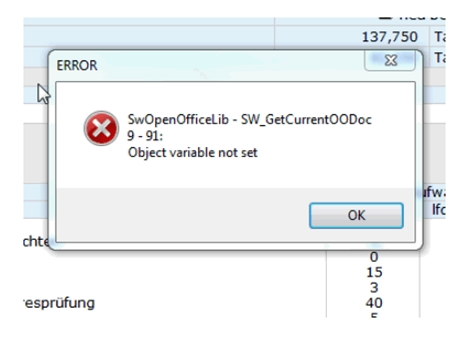
When installing or upgrading to Notes 9.x, some OpenOffice files/registry are being deleted. This leads to a missing “com.sun.star.ServiceManager” and the service cannot be created.
One fix is to reinstall OpenOffice and the other fix is to input the missing registry values:
Description
When working in the 6.5.4 Domino Designer, inserting «SwAttachments» or «SwAttachmentsLayout» subform cause Notes client to crash with NSD error.
Solution:
Following the description of the error on the Notes.net there are couple of threads stated that this problem is solved within the version 7 and it will be solved in one of the next 6.5.x releases:
Solution
To avoid the crash, do the following:
1. Open your db in designer 6.5.4
Description
I have installed SWING Integrator to a Lotus Notes database.
I want to be able to grab template documents from another database. What do I need to do to make that database source of template documents?
Solution
What you need to do is set SW_TemplateDbServer and SW_TemplateDbFilePath globals in the Document databases to point to the Template database (storage) on the server. You should set these variables for every database you need to get Templates for. You will find them in the "SW_IntOfficeMsg" script library.
Below is the description what you need to set to have proper template selection:
Template database:
which will have stored Template setup documents on the server in data directory.
4. Choose the following:
Active User’s ID to sign using with your ID.
5. Choose the following option to specify which elements to sign:
All design documents to sign every design element.
6. Select “Update existing signatures (faster)”
7. Click OK.
SW_TemplateDbServer = ""
SW_TemplateDbFilePath = "”
No need for grabbing the templates for this database. So, just leave those two clear:
Point to document database (the one that will provide you with the forms to map the fields). This could be a mail database on server as this is used only for selecting forms and fields from it so ti actually correspondent with same forms and fields in users mail databases.
SW_DocumentsDbServer="" 'Use in templates database to point to document database server
SW_DocumentsDbFilePath = ""
'Use in templates database to point to documents database
Document database(s)
You need to set server and path to the Template database from where it will select templates
SW_TemplateDbServer = "" 'Use in documents database to point to templates database server
SW_TemplateDbFilePath = ""
'Use in documents database to point to templates database, relative to data directory (e.g. "IntOffice\MyTemplates.nsf")
' These globals stays clean as you do not need another document database
SW_DocumentsDbServer = ""
SW_DocumentsDbFilePath = ""
If you need to create Template setup document you need to set Document database path in the Template database (those variables could be changed programatically).
3. Save and close subform
4. Open a form in which you need subform...insert it...save and close the Form
5. Delete or rename this fake subform
6. Paste the real “SwAttachments” subform from our database
Undocumented functions are used for internal purposes and they can be modified within the versions (although not very likely).
These functions are called by published API functions. Of course, there are cases when these functions are solely helpful and can be used in code customization.
In addition, if you need to modify the functionality of those unpublished functions, purchasing the source code license will provide you with the open source and you will get the handle on the whole functionality of the product.
We are supporting language customization in terms of modifying two of the script libraries. Since this is the developers product, which can be integrated to whatever database, this seemed as the most practical way of achieving multilingual support.
These libraries (SwIntOfficeMsg and SwCoreMsg) need to be prohibited for design refreshes, but this is not a big problem, because those libraries are not updated very often anyway.
When they gets updated, these are usually just few lines of code, which we document and give guidance on what needs to be done in order to update your custom SwIntOfficeMsg and SwCoreMsg library.
No. In order to have SWING functionality you do not have to install DLL's or any other executables. We intentionally did not include this into our software because dlls need to be installed individually on each client machine and can introduce problems with new versions, new editions, installing new databases, etc.
Office global templates provide SWING VBA modules. Therefore, macros are installed in that respect.
Unfortunately, our software does not work in the Mac environment. We don't have any current plans to address this issue, but that could change in the future.
Yes.
Function SW_IntOfficeMsg (MsgNo As Integer) As String
Select Case MsgNo
Case 1
    If SwLanguage = "EN" Then
        SW_IntOfficeMsg = SW_IntOfficeMsgEN1
    Else
        SW_IntOfficeMsg = SW_IntOfficeMsgNO1
    End If
Case 2
    If SwLanguage = "EN" Then
        SW_IntOfficeMsg = SW_IntOfficeMsgEN2
    Else
        SW_IntOfficeMsg = SW_IntOfficeMsgNO2
End IfI would like to sign newly created PDF document.
The DigitalSignature method is used to add a digital signature to a PDF document. Prior to digitally signing a document, the users or developers should have on their systems a digital certificate that can be used to sign documents.
.DigitalSignature "Name of the signer", "Reason", "ImageFile", "Location", -1,0 ,0, 0 ,0 , 1 + 4 + 32
SignerName This is the friendly name of the digital signature as it appears to the user when the digital certificate is installed on the system. In most cases, this is the full name of the person signing the document.
Reason Reason for signing the document. Can be an empty string if no reason is specified.
ImageFile Full path of the file containing the image that is associated with the signature. This is optional, a digital signature does not always contain an image.
Location Physical location of the person who signed the document. This parameter is optional.
PageNumber Page number on which to insert the signature. Page numbers start with 1, the value -1 indicates the last page in the document.
HorzPos, VertPos Horizontal and vertical position of the digital signature in Twips.
Width, Height Width and height of the digital signature in Twips.
Flags Combination of flags that determine how the digial signature appears on the page. A value of 0 indicates that the signature is invisible.
This method returns 0 upon success, it returns one of the following exceptions upon failure:
E_NOTIMPL The license key that is provided does not enable digital signatures
E_ACCESSDENIED The document security settings do not allow the user to modify the document
E_INVALIDARG One of the arguments is invalid or the certificate does not allow signing documents
E_FAIL The signature already exists
The Flags parameter can be a combination of one of the following values:
Signer name 1 Reason for signing 2 Location 4 Associated image 8 Date of signing 32 Signature type 64
Sub Click(Source As Button)
Dim FilePathName As String
Dim PDFApp As Variant
Dim PDFDoc As Variant
FilePathPDF = "C:\Temp\test.pdf"
Set PDFDoc = CreateObject("cdintfex.document")
With PDFDoc
.Open FilePathPDF
.SetLicenseKey SW_PDF_PRINTER_USER_NAME, SW_PDF_PRINTER_LICENSE_KEY
.DigitalSignature "Name of the signer", "Reason", "ImageFile", "Location", -1,0 ,0, 0 ,0 , 1 + 4 + 32
Notice: Signer should have certificate on his/her name in the Windows digital ID repository. This name should be set as the first parameter in the .DigitalSignature method.
Using SWING Integrator in Domino Web application requires installing and running the ActiveX controls. By design in Windows 2000, XP and 2003 members of the Users group cannot install ActiveX controls from the Internet without modifying the rights of the group. However, it is possible to allow the Users group to install some ActiveX controls. This article describes how to publish SWING Integrator ActiveX controls in the Active Directory to facilitate this functionality.
Preparing the Control
The ActiveX control must be packaged as an Installer Package (.msi) file instead of as a standard Internet Explorer cabinet (.cab) file. This file is provided to you by SWING Software (Integrator4.msi)
Publishing the Control
Once you have the MSI package, the Active Directory must be made aware of the control. The control must be added as a published control in the user portion of a policy for the appropriate Organizational Unit (OU). After the control has been published properly, you should see it in Add/Remove programs for any of the users in the OU.
After you have prepared the control and confirmed that the control can be seen in Add/Remove programs, you need to set up a registry entry in Windows 2000 that causes Internet Explorer to check the Active Directory for an installation package for the control. This entry is HKEY_LOCAL_MACHINE\Software\Microsoft\Windows\CurrentVersion\Internet Settings\UseCoInstall. Note that this can be any type of value and can contain any or no data. Here is the detailed instruction on creating and setting up the group policy:
.Save "C:\Temp\signed_PDF.pdf" End With End SubCreate a Distribution Point
1. Log on to the server computer as an administrator.
2. Create a shared network folder in which to place the MSI package (for example, \\server\share).
3. Set permissions on the share to allow access to the distribution package.
4. Copy the Integrator4.msi installation package to the distribution point.
Create a Group Policy
To create a Group Policy object (GPO) with which to distribute the software package:
1. Start the Active Directory Users and Computers snap-in. To do this, click Start, point to Programs, point to Administrative Tools, and then click Active Directory Users and Computers.
2. In the console tree, right-click your domain or Organizational Unit, and then click Properties.
3. Click the Group Policy tab, and then click New.
4. Type the name that you want to call this policy (for example, SWING Integrator 4 ActiveX), and then press ENTER.
5. Click Properties, and then click the Security tab.
6. Click to clear the Apply Group Policy check box for the security groups that you want to prevent from having this policy applied. Click to select the Apply Group Policy check box for the groups to which you want to apply this policy. When you are finished, click OK. Note that you can also add other individual users or groups.
Publish a Package
To publish a package to computer users and make it available for installation from the Add or Remove Programs tool in Control Panel:
1. Start the Active Directory Users and Computers snap-in. To do this, click Start, point to Administrative Tools, and then click Active Directory Users and Computers.
2. In the console tree, right-click your domain or organizational unit, and then click Properties.
3. Click the Group Policy tab, click the newly created group policy object (SWING Integrator 4 ActiveX), and then click Edit.
4. Under User Configuration, expand Software Settings.
5. (Windows XP and Windows 2003 only) Right-click the Software installation node and then click Properties.
6. (Windows XP and Windows 2003 only) In the Software installation Properties dialog box, click the Deployment tab.
7. (Windows XP and Windows 2003 only) Click Advanced, and then click to select the Include OLE Class and Product Information check box.
8. (Windows XP and Windows 2003 only) Click Apply and close the Software Installation properties window.
9. Right-click Software installation, point to New, and then click Package.
10. In the Open dialog box, type the full UNC path of the shared installer package that you want (for example, \\server\share\Integrator4.msi). Important: Do not use the Browse button to access the location. Make sure that you use the UNC path to the shared installer package.
11. Click Open.
12. Click Publish, and then click OK.
13. The package is listed in the right pane of the Group Policy window.
14. In the right pane of the Group Policy window, select the newly created package, right click it and select Properties.
15. Set name to SWING Integrator4 ActiveX Controls.
16. Switch to the Deployment tab. In the Deployment options section, uncheck the "Do not display this package in the Add/Remove Programs control panel" check box.
17. Click Advanced… and check option "Ignore language when deploying this package".
18. Click Apply and close the Properties dialog.
Add the Administrative Template that will modify the Registry
It is necessary to add the administrative template which will instruct the Group Policy object to add a Registry key to the machine where the Group Policy is applied.
1. In the left pane of the Group Policy window, in the Computer Configuration section, select the Administrative Templates node.
2. This step differs slightly for Windows 200 and Windows 2003 servers. Windows 2000 only: Right click, and go to View menu item. In the View submenu, uncheck both "Show Policies Only" and "Show Configured Policies Only" options. Windows 2003 only: Right click, and go to View -> Filtering... . In the Filtering dialog, uncheck the "Filter by Requirements information", "Only show configured policy settings" and "Only show policy settings that can be fully managed" options. Click OK to close Filtering dialog.
3. Right click on the Administrative Templates node in the Computer Configuration section and click Add/Remove templates…
4. In the Add/Remove templates window, click Add… and select the usecoinstall.adm file in the file dialog. Click Open.
5. On the Add/Remove Templates window click Close.
6. Now expand the Administrative Templates node in the Computer Configuration section. You should see Registry Settings section there. Select it.
7. In the right panel of the Group Policy window, you should see the "Enable Admin Approved ActiveX Installation via AD" setting. Set its value to Enabled.
8. Close the Group Policy window.
9. Close the Properties window and the Active Directory Users and Computers snap-in.
End-user experience
If everything is set-up correctly, once the end-user logs-in to this machine, the SWING Integrator ActiveX Group Policy should be applied to the machine. When a Windows 2000, XP or 2003 client visits a Domino Web application that contains the SWING Integrator ActiveX control that has not yet been downloaded, the registry value HKEY_LOCAL_MACHINE\Software\Microsoft\Windows\CurrentVersion\Internet Settings\UseCoInstall is checked. If this value exists (and it should, following the Group Policy above), Active Directory is checked to determine whether the ActiveX control has been published. If the control is available (and it should be, following the Group Policy above), it is downloaded and installed with Windows Installer. If the control has not been published, Internet Explorer determines whether or not the current user has adequate permissions to download and run the control. The control is downloaded and run if the user's permissions are sufficient. If they are not sufficient, a red X is displayed on the Web page where the control should appear.
The scenario described above covers the installation of SWING Integrator ActiveX controls in the locked-down environments.
If you are uncomfortable with unique names and want to create a solution that will override these names (generated by the @Unique formula).
Advice would be that you save word document as attachment with unique name. You are able to set the name of the attachment in the SwAttName_xx field. Of course, document would be opened under the unique name. If user needs to save that document she will need to save it on some other place under different name and in this case unique name has no influence on the handling of the document.
The attached document and all functionality resides on the unique name.
Let's put it this way, if you have two attached documents with the same name and different content you will eventually open those two documents in the same time. If this happens the first open document would be overwritten or the second would not be able to open. Therefore, I will strongly suggest that you do not change the name of the attachments unless you are creating functionality that is using attachment outside "swing" functionality like forwarding or attaching to a database that is not swing enabled.Therefore, even if you attach same document to two different Notes documents it will be attached under two different names. This is a basic functionality.
If you still want to achieve this functionality:
Copy code from the attachment to document action with or instead Template action and it will provide you with the desired name. Of course, you should change the name, currently "TestTrial_TODAY"
NewFileName = "TestTrial_" + Cstr(Today())
New: PDF Printer driver replaced with MS Word and Apache OpenOffice PDF export feature
Fix: Previously minimized Word instance stuck after Word document is created
Fix: Template list not visible in IE Edge
Fix: Lotus Notes menu visible when there are no available actions
Fix: Special characters in the name of the file to be attached to Template setup document cause error
Fix: MS Office does not exist message when using OpenOffice to save as PDF
Fix: Convert2PDF issue
Fix: When opening protected document with incorrect password, provide error description instead default error handler
Fix: Double-prompt for Save.
Fix: Missing OpenOffice reference in status display
Fix: Flat export to Excel - no multivalue export
Fix: [Web] - multivalue field to Word NR table adds empty rows
Fix: [Web] - NL separator not properly transferred
Fix: [PDF] - Office 2010 error when missing default PDF setup document
New : New certificate - Sign ActiveX and Templates
New : PDF - use PDF setup document options when MS Word conversion is used
Fix: Word bookmark data not transferred to Notes RTF field
Fix: Opening of document in read mode causes date fields to update
Fix: PDF printer - typo and xmllite existence verification
Fix: Reusable texts Search box - 5825 error
Fix: SW_GetAttFileName, unwanted chars at the output
Fix: 182 - EXPORTASFIXEDFORMAT does not exist
Fix: Bad default View names in templates
Fix: Excel report template setup: tab Chart saving
Fix: Reusable texts changed due to Office 2010 missing common controls
Fix: Conflicting document never saved
Fix: Global variable with templates list to avoid errors when other Word add-ins break initialization of the SWING templates
Fix: Partially protected MS Office documents raise error
Fix: SW_ExtractFileToDisk 36 - 75: Path/fie access error - when opening lookup for fields in an already opened document
Fix: Conditional Texts - Bookmarks and fields are mixed together and bookmarks have "<>" in their names
Fix: Launch of the already created (but not saved) document give prompt that document is missing
Fix: PDF file gets the cryptic background name when choosing "Convert to PDF" action
Fix: Professional Letter template - missing Body field
Fix: Attempt to access uninitialized dynamic array
Fix: Ctrl+S returns to the first page
Fix: Office 2010 64-bit - Word macros fix
Fix: Save to Notes menu always visible in Excel
Fix: Cannot initialize templates if user have Remove Hidden Data (RHD) Tool installed
Fix: Lotus Notes 5.xx USEor USELSX problem
Fix: Lotus Notes 5.xx.xxx USE or USELSX issue
Fix: [Web] Error when openning Templates created on the Web
New: Lotus Notes/Domino 8.5.1 supported
New: Microsoft Windows 7 supported
New: [Web] Microsoft Security Update (Oct. 09) compatibility resolved
Fix: Sw_MassPrintingEx - Requested object is not available
Fix: [Web] Closing Word document closes Excel document also
Fix: [Web] Multiple Mail Merge Permition denied and Requested object is not available error
New: [Web] Improved MS office 2007 document handling
New: Office 2007 new file types incl. template setup documents
New: Leftover separator characters in a MS Excel report type templates
Fix: Global constant correction
Fix: Activate license - a typo
Fix: Error when saving attached MM documents
Fix: Excel reports - multilanguage support
Fix: Export documents using predefined report leaves data in the Excel clipboard (Office 2007)
Fix: SW_XlTGetDocumentCharts Automation Error with Office 2007
Fix: Change in Excel flat documents export --> SW_XlExportDocsFlat
Fix: Change in Excel flat documents export --> SW_XlExportDocsFlatCat
Fix: Documents are always saved
Fix: Incomplete printout of large documents when using print dialog with SW_PrintDocument(FileName, True)
Fix: Error on creation of another mail merge document while previous one is opened
Fix: Error when closing two previously opened non Office documents
Fix: Save to Notes always visible
Fix: SW_OpenMailMergeBkg - wrong return value
Fix: Document assembly - Insert reusable text problem
Fix: Error generating charts with Office 2007
Fix: WEB - Templates Field Mapping Error
Fix: WinXP Office 2007 - Excel report chart creation error
Fix: SW_ConnectDataSourceWithMM
New: Allow to use "Use" statements in field mapping for LS code snippets
New: Edit document template on Web
New: Changes to SW_PrintOODoc function
Fix: OpenOffice - Data from bOpenOfficekmarks in OpenOffice was not transferred to Notes RTF field
Fix: OpenOffice - NL separator
Fix: OpenOffice - RTF to Notes error
Fix: OpenOffice - transfer from OpenOffice to Notes RTF field
Fix: PDF setup documents cannot be stored in another database
Fix: [Web] Charts are not displayed in popup dialogs if the site is not in the Local intranet or Trusted zones
Fix: Excel - number fields from Notes to Excel not properly formatted
Fix: [Web] - Open excel file, delete value in a cell - the change is not reflected in the Notes document
Fix: Quotation sample - error when MS Office is not installed
New: Meaningful messages when MS Office is not installed
New: Message "Please execute 'Activate license' action" can be modified
Fix: Setup Wizard error
Fix: SW_PrintMailMerge error in Word 2003
Fix: Error when printing to PDF - printer cannot be initialized
Fix: Unable to perform bi-directional field exchange in Excel
Initial Release 5

New: Office 2007+ updated Excel and Powerpoint creation of PDF
New code certificates
Fix: [xPages] - Inability to open document from read mode
Fix: [xPages] - Minor issues
Fix: SwDocumentLib - SW_ReprotectDoc when exiting document while word doc has header open
Fix: Win 7 - ActiveX control even installed cannot be initialized
Fix: XLTM Excel templates not working
Fix: [OOo] Error with a field in the field mapping that is not in the template setup document
Fix: [OOo] Mail Merge Error
Fix: [OOo] SwOpenOfficeLib - SW_SetOOCalcField 26 -213
New: Open Office - Modification of OO Mail Merge template in the sample database
Fix: UI document gets refreshed when open Word attachment is saved
Fix: Error 45-53 in Sw_AddAttachment when attaching existing document
Fix: [Learning center] Word 2007 - VBA 4120 - Parameter is incorrect
Fix: [Web] Mail Merge - Document Field selection fails
Fix: [Web] No icon when PDF document is attached. Attached type is OTHER.
Fix: [Web] View To Excel - unable to attach existing template after deleting the template file
Fix: [Web] Templates -> Word -> "Lease Agreement" need to change conditional text formula
New: [Web] Templates fine tuning
Fix: Status line: "Microsoft Office Excel 97-2003 Worksheet"
Fix: Super_User installation of the Printer driver issues
Fix: TSD - Word - Conditional texts - if there is no bookmark in the document
Fix: Unable to have two attachments from the same document opened in read mode at the same time
Fix: [Web] Delete templates
New: [Web] Drag & drop attachment in Web browser
New: Refreshed comments on SWPDFLib
New: Renewed code signature for the Office VBA code
Fix: [Web] ActiveX support for Firefox 3.6
Fix: Developer Guide - System Requirements
Fix: Sample Database - Save as PDF error with OO template
Fix: SW_AddAttachmentEx
Fix: SW_GetAttPosition not working
Fix: interference with SnagIt in Office templates
Fix: PDF - activation problem
Fix: Template and ActiveX sign
Fix: Changes not preserved when first reading and then editing document
Fix: Track changes in Word when opening from web
New: **SwDoNothing** - if there is no value to transfer to Word field