> For the complete documentation index, see [llms.txt](https://docs.swingsoftware.com/llms.txt). Markdown versions of documentation pages are available by appending `.md` to page URLs; this page is available as [Markdown](https://docs.swingsoftware.com/seascape-for-notes/archiving-with-seascape/sharepoint-archive-overview/structured-upload-recommended.md).
# Structured Upload (recommended)
Automatically creates SharePoint lists, libraries, pages, views, and cross-links
## Database export and upload to Sharepoint
Follow the steps below to export your Notes databases from Seascape to Microsoft SharePoint using the auto-mode method.
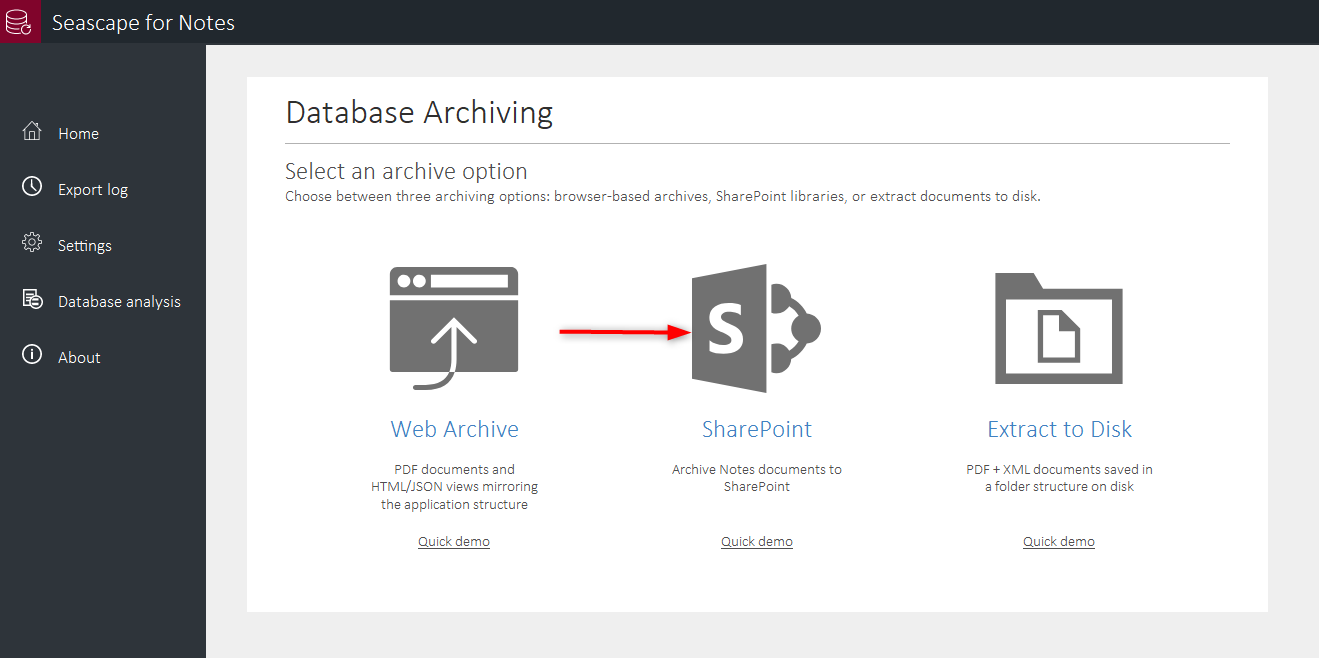
1. From the **Seascape home page**, click **SharePoint**.
2. Select your database(s), configure the export settings, and choose a **staging folder** (this is where the exported data will be temporarily saved).
3. Click **Start export now**.
4. When the export finishes, click **Upload to SharePoint**.
5. The **SharePoint upload utility** will open. Select your database(s) and click **Next**.
{% hint style="info" %}
To select multiple databases, hold the **Ctrl** key and click each database you want to upload.
{% endhint %}
6. Click **Add a site**, then enter a **connection name,** choose an **authentication type** and enter the **site address**. Click **Test Connection**.
{% hint style="danger" %}
Make sure you are logged into your SharePoint site in your browser before creating the connection.
{% endhint %}
7. When the connection is confirmed, click **Save settings** to save it.
8. Select the saved connection in the connection dropdown and click **Connect**.
9. Click **Next** to move to the final step.
10. Review the upload configuration. If needed, adjust the optional settings, then click **Start upload**.
11. The upload will begin. You can monitor progress in the **runtime log**.
12. Once complete, the uploaded databases will appear with direct **links to the SharePoint archives.**
## Navigating database archives SharePoint
### Example: Multiple databases
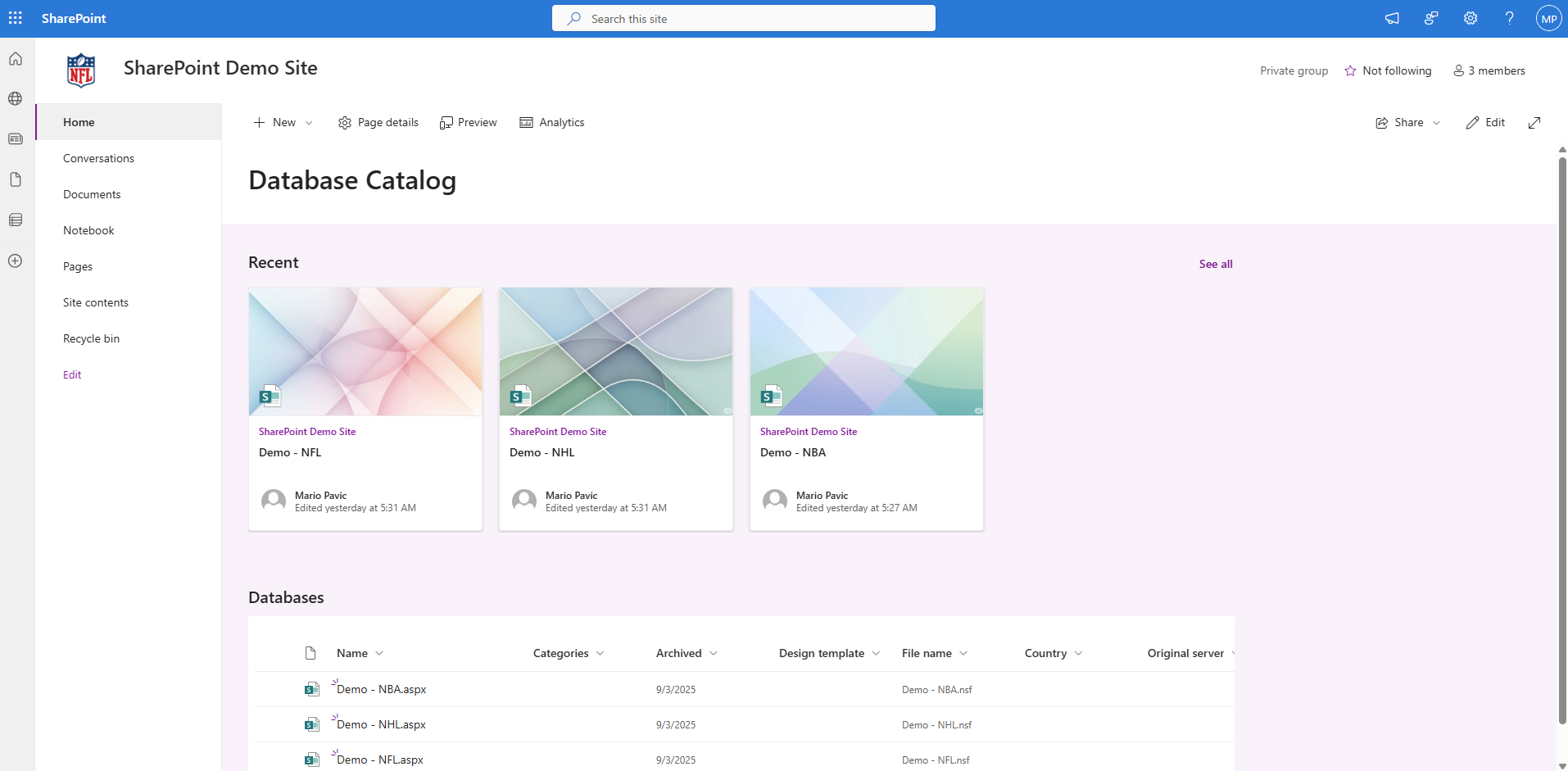
Here is a SharePoint site where three Lotus Notes databases have been migrated:
### Example: Opening a database
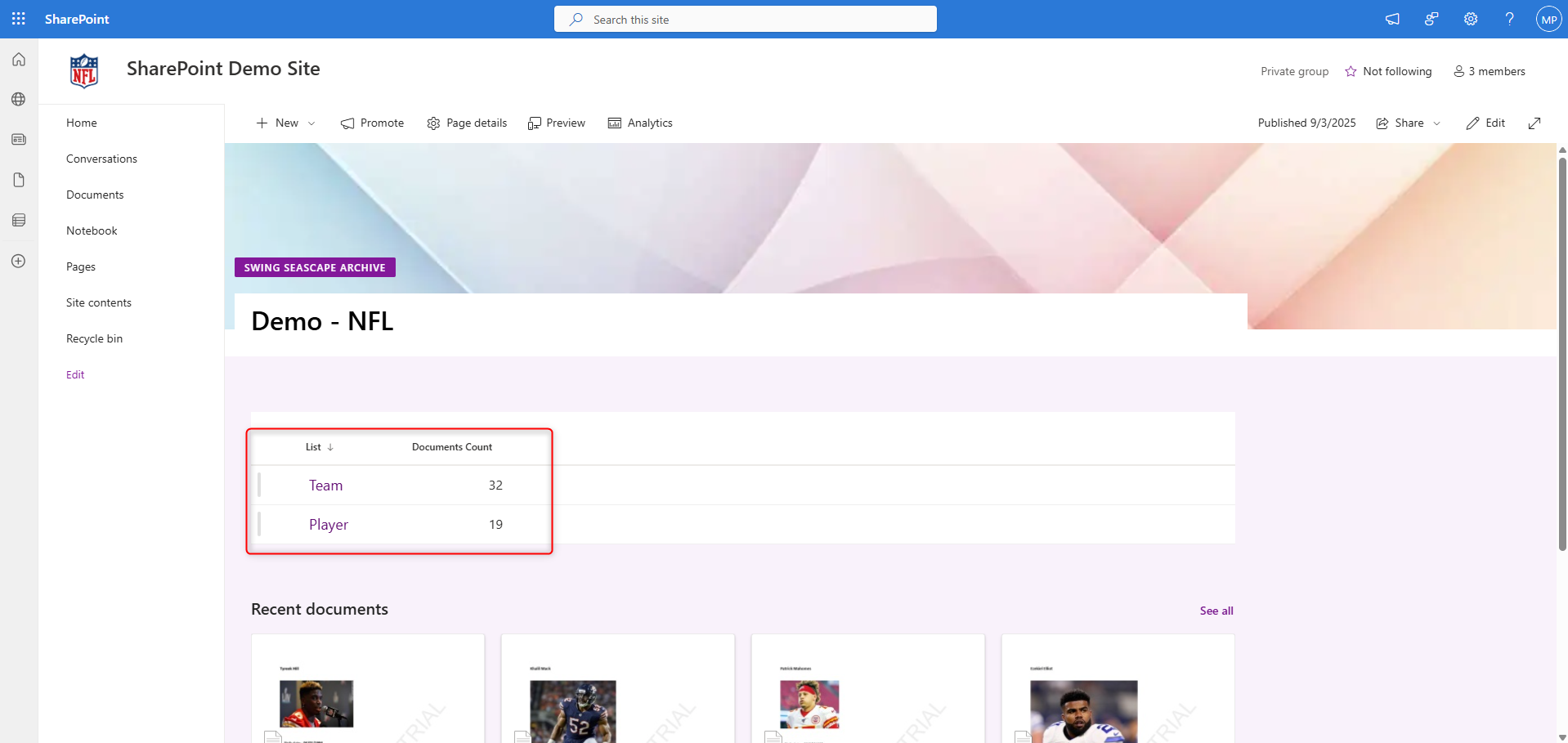
When we open one of the databases, we see the lists associated with that database. In the following example, the demo NFL database shows two lists, **Team** and **Player**, since the NFL database included two form types with those names:
### Example: Viewing a list
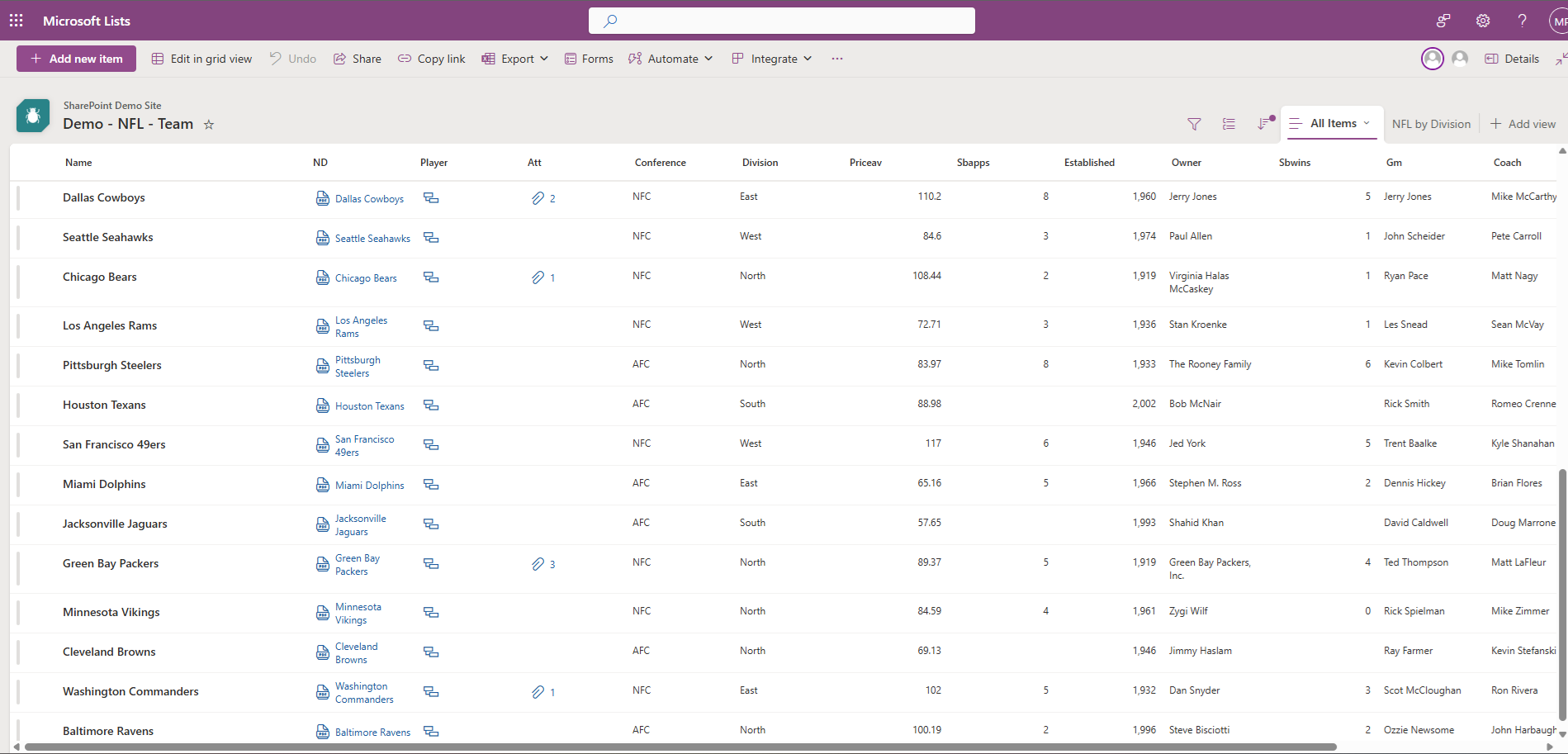
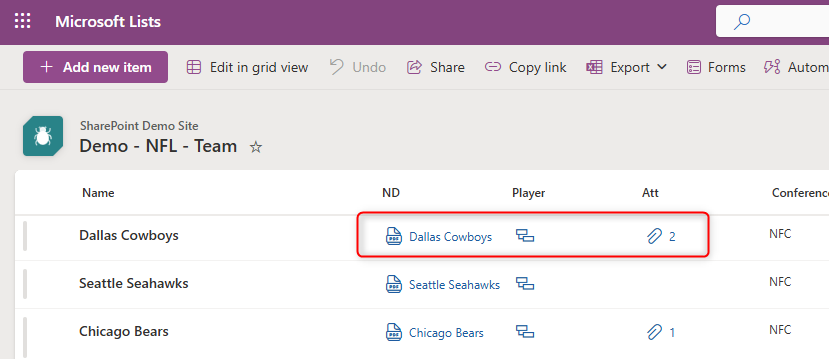
Clicking on a list displays its items (previously Notes records). For instance, opening the **Team** list shows all teams and their properties:
* The **ND column** opens the main PDF document (a copy of the original Notes record).
* Additional columns provide access to **related items** (child records) and **file attachments**.
In the example below, the *Dallas Cowboys* list item includes several related items (players) and two attachments, which are accessible through the provided columns:
### Example: Viewing related items (child records)
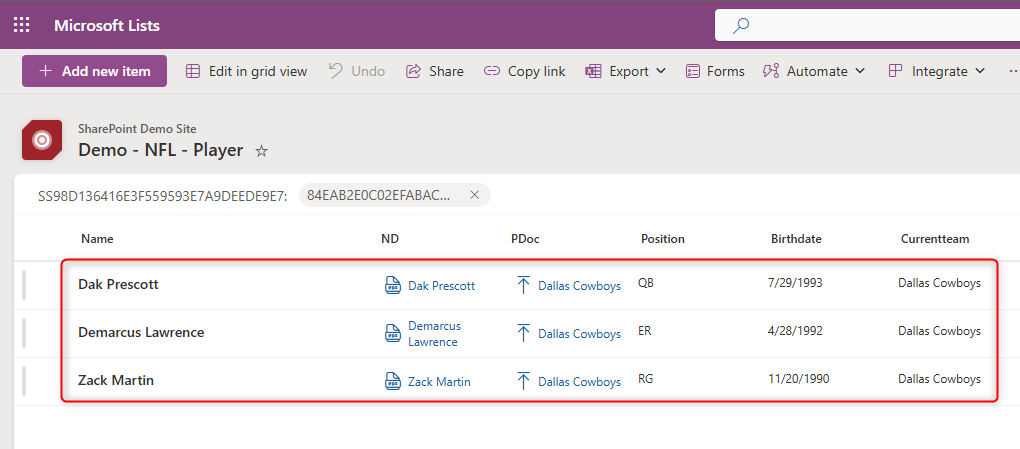
Clicking on the **Player** icon from the Dallas Cowboys list item, shows the Player list filtered to display only the related items for the selected parent. Users can also return to the parent by using the shortcut in the **PDoc column**.
### Example: Viewing attachments
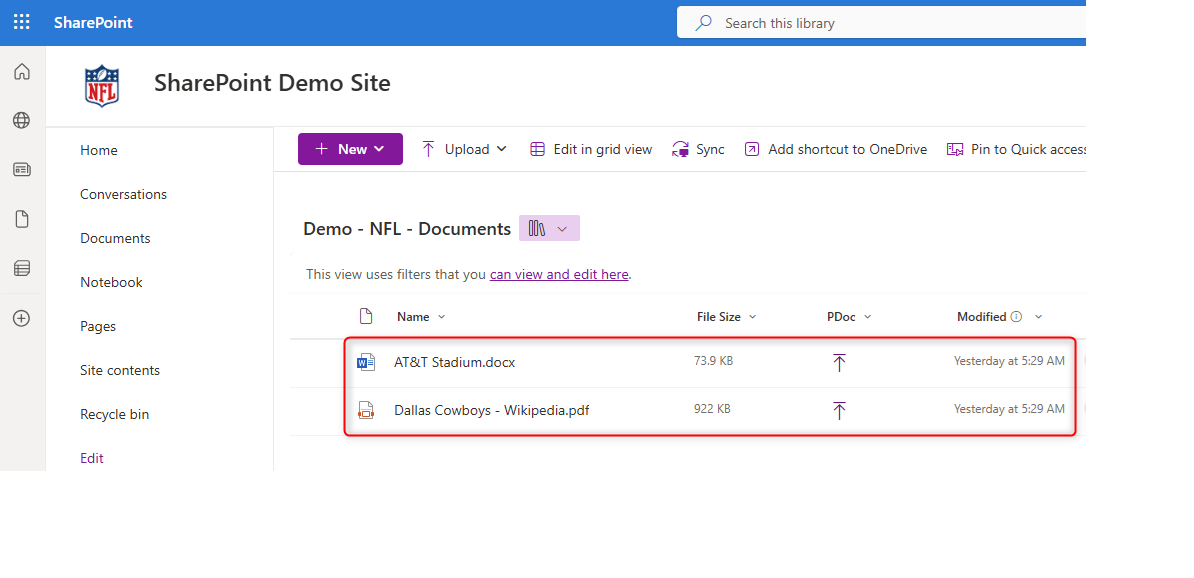
Clicking on the **Attachments** shortcut opens another view where users can access files associated with the parent list item:
### Example: Opening a PDF record
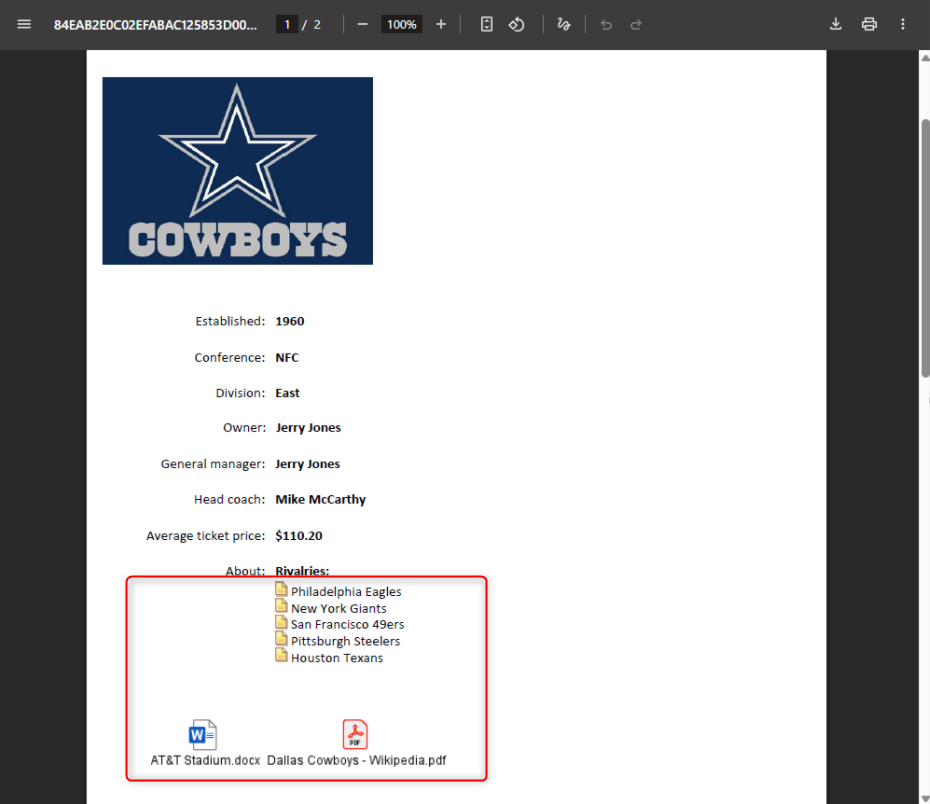
The following screenshot shows a PDF generated from the *Dallas Cowboys* Notes document. Within the PDF:
* **Doclinks** remain active, allowing users to navigate to related records.
* **Attachment icons** provide direct access to the original files.
This mirrors the user experience in Lotus Notes.
## Completing the Migration
The Lotus Notes database archive has been successfully migrated to your SharePoint site without requiring manual intervention.
You can now use SharePoint features such as creating additional views, grouping, filtering, sorting, and applying advanced formatting to list views.
Integration with Power Apps, Power BI, and Power Automate enables the creation of custom forms, advanced analytics, and automated workflows.
---
# Agent Instructions
This documentation is published with GitBook. GitBook is the documentation platform designed so that both humans and AI agents can read, navigate, and reason over technical content effectively. Learn more at gitbook.com.
## Querying This Documentation
If you need additional information that is not directly available in this page, you can query the documentation by asking a question.
Perform an HTTP GET request on the following URL with the `ask` and `goal` query parameters:
```
GET https://docs.swingsoftware.com/seascape-for-notes/archiving-with-seascape/sharepoint-archive-overview/structured-upload-recommended.md?ask=&goal=
```
`ask` is the immediate question: it should be specific, self-contained, and written in natural language.
`goal` is what the user is ultimately trying to achieve, the reason they need the answer. Sharing it helps GitBook give you a better, more relevant answer. A goal is most helpful when it describes the outcome the user wants rather than restating the question. For example, with `ask=how do I create an API token`, a goal like `automate deployments from our CI pipeline` lets GitBook tailor the answer to that use case.
The response will contain a direct answer to the question and relevant excerpts and sources from the documentation.
Use this mechanism when the answer is not explicitly present in the current page, you need clarification or additional context, or you want to retrieve related documentation sections.